Quick Start
Demo onboarding flow for a new dedicated OACast station owner.
- Log in through the WHMCS client area at my.oacast.co.uk.
- Open the active OACast service and follow the control-panel login link.
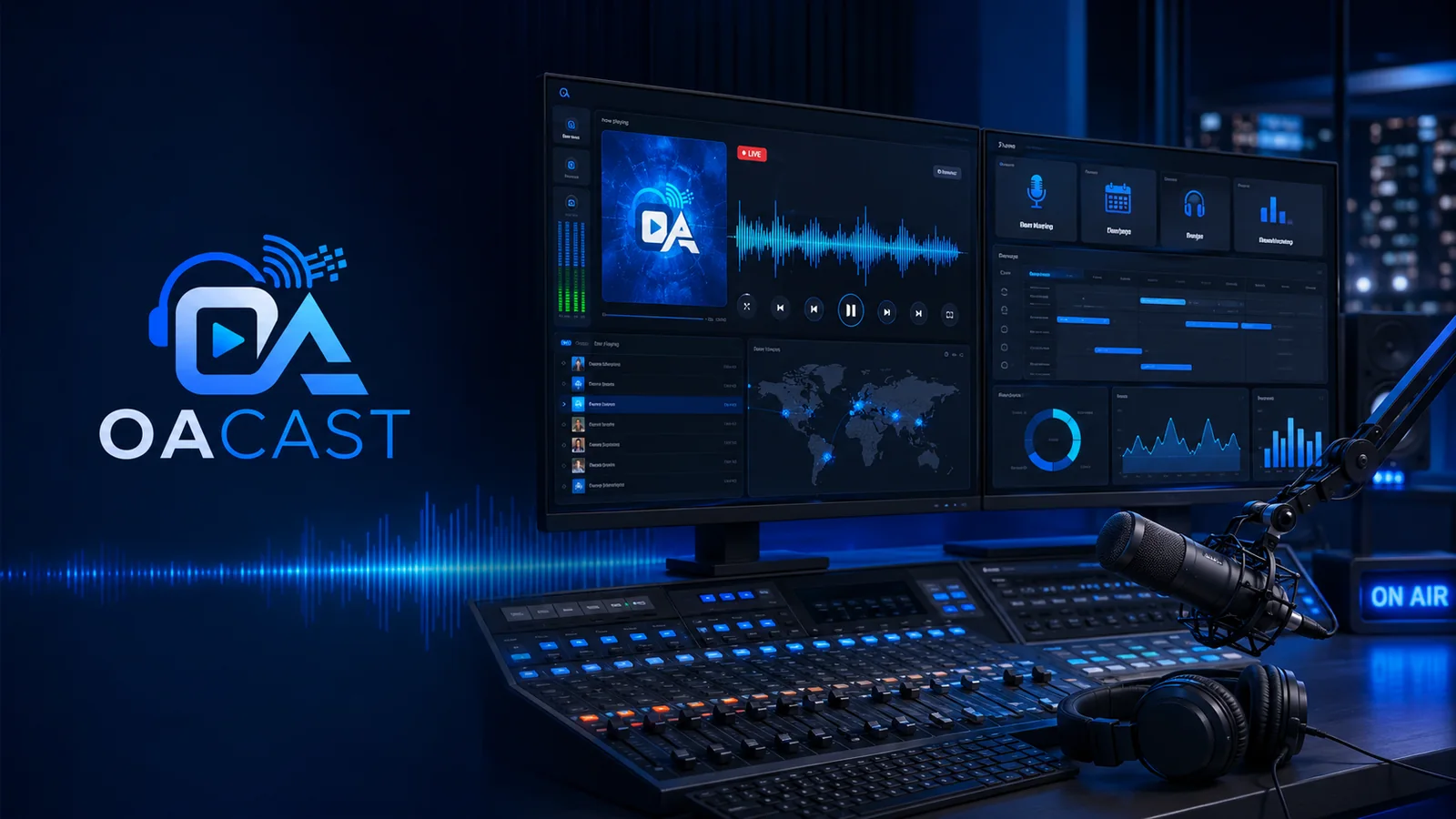
- Check dashboard mode, listener summary, service badges and now-playing state.
- Upload fallback audio and first AutoDJ rotation content.
- Test the public stream and branded start page before promotion.
AutoDJ Playout Controls
Demo documentation for controlling the dedicated AutoDJ and Liquidsoap engine.
- Open Playout Controls from the sidebar.
- Use Start AutoDJ when the automated stream should run.
- Use Reload Playlist after updating the active playlist.
- Use Skip Audio only when you want the next queued item.
- Run config check/rebuild tools only when support or workflow notes recommend it.
Clockwheel & Jingle Rules
Demo guide for radio-style rotation and imaging rules.
- Open Clockwheel or Scheduler Rules.
- Create a rule for folder, playlist, file, relay or full-show source selection.
- Add jingle interval rules such as every 2, 5, 10 or custom number of songs.
- Use timed rules for top-of-hour or exact minute imaging.
- Preview conflicts before relying on the schedule for production.
Advanced Programme Scheduler
Demo guide for building one-time, weekly and multi-day programme blocks.
- Create a scheduled block from the Advanced Scheduler.
- Choose a source: scheduled folder, playlist file, relay URL or full-show audio file.
- Set start time, duration and server/admin timezone.
- Use one-time, weekly or multi-day recurrence such as Monday/Tuesday/Friday 14:00–17:00.
- Confirm the station returns to AutoDJ when no scheduled show is active.
Live DJ Accounts
Demo workflow for presenters connecting to the station.
- Create a DJ profile with display name, email and bio.
- Generate the DJ live password and mount details.
- Set permissions for upload, playlists, logs and live-anytime access.
- Give presenters the connection details without exposing server admin credentials.
- Use the dashboard to confirm live mode and metadata where available.
Media Manager & Playlist Builder
Demo documentation for library organisation and AutoDJ playlist building.
- Open Media Manager and create clear folders for music, sweepers, jingles, adverts, podcasts and fallback.
- Upload multiple files and watch progress, speed and status.
- Preview tracks and delete incorrect files when required.
- Create a playlist or generate one from a folder.
- Set the active AutoDJ playlist and restart/reload when ready.
Fast Upload Centre
Demo workflow for large audio uploads.
- Drag audio files into the Upload Centre.
- Watch each file progress, speed and finalising state.
- Wait for the upload log to confirm processing/indexing.
- Open Media Manager to preview and organise uploaded files.
- Use metadata tools later for artwork and enrichment.
Metadata & Artwork
Demo guide for track enrichment and local artwork cache workflows.
- Use manual metadata lookup for artist/title matching.
- Queue background enrichment where available.
- Use MusicBrainz for safe metadata lookup and TheAudioDB for artist/album/track artwork details.
- Review suggested metadata before applying it to production library entries.
- Clean up artwork cache as part of future maintenance workflow.
Relay, Dynamic Queue & Injection Carts
Demo guide for live-assist and special-event programming.
- Add relay URLs for partner streams or syndicated shows.
- Use scheduled relay blocks for recurring external programming.
- Push selected tracks into the Dynamic Queue for requests or specials.
- Upload jingles, sweepers, adverts and voice clips into injection carts.
- Trigger carts carefully during live assist.
Live Statistics
Demo guide for real-time listener visibility.
- Open Live Statistics.
- Check current listeners, peak listeners, bitrate and now playing.
- Use the browser-rendered trend chart for quick movement checks.
- Confirm Icecast and AutoDJ service badges are healthy.
- Use support if service checks disagree with the public stream.
Playback History & Reports
Demo documentation for history, listener snapshots and station reports.
- Open Playback History to see played-at time, artist, title, source and listeners-at-play where available.
- Open Statistics History for range-based listener snapshots.
- Open Reports to choose date range and export format.
- Download SoundExchange-style TXT, CSV, XLS or PDF-style summaries.
- Use reports for station records, programming review and sponsor discussions.
Health, Logs & Safe Admin
Demo guide for managed-service visibility and safer support.
- Open Resources for RAM, disk, storage, network, uptime and service checks.
- Open Logs for Icecast, Liquidsoap, Nginx, FTP/media sync, relay and scheduler logs.
- Use approved restart/check actions only from the panel.
- Run media scan or schedule apply actions where available.
- Escalate outages, data loss, billing and server-level issues to Online Audience support.
Ordering and service management
Ordering, client login, invoices, tickets and service management are handled through the OACAST client portal. The public site remains the product, documentation and enquiry layer.