
What OA Vault 42 does
OA Vault 42 (Radio Vault 42) is a dedicated radio recording/archive service. It pulls an existing direct HTTP/HTTPS station stream, records continuously with FFmpeg, creates clock-aligned one-hour MP3 files and maintains a secure rolling 42-day archive.
| Service characteristic | What it means |
|---|---|
| 24/7 supervised recording | The recorder is designed to run continuously against the configured station stream. |
| Clock-aligned hourly files | Each day is organised as 00:00–01:00, 01:00–02:00 and so on through 23:00–00:00. |
| 42-day rolling archive | New recordings enter the retained window while expired recordings age out. |
| 1,008 hourly slots | A complete 42-day period contains 24 × 42 hourly recording slots for each channel. |
| Controlled access | Administrators manage recording channels and user access; authorised users can play/download assigned archives. |
From live station to retained archive
Vault 42 works as a retention layer beside the current radio platform rather than replacing the listener-facing stream.
The capture process consumes the configured HTTP/HTTPS audio source and produces the archive stream.
The output is divided into predictable one-hour windows instead of arbitrary recording chunks.
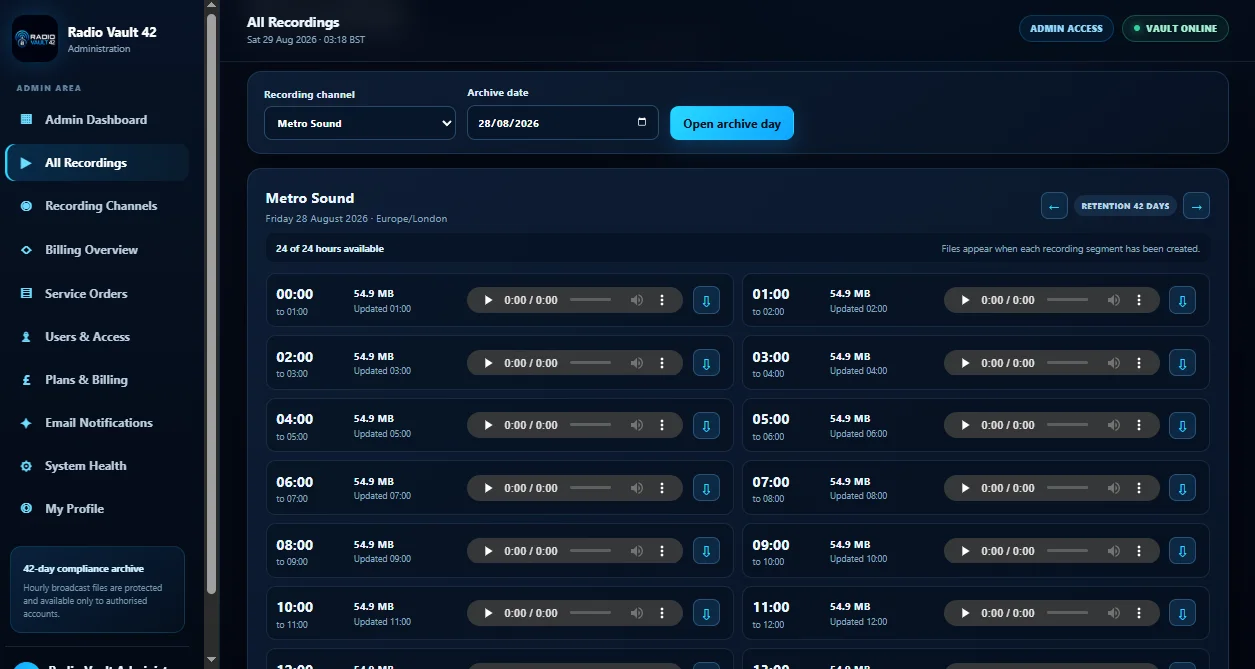
Users browse by recording channel and archive date, then review the hourly slots.
Older segments expire as the archive moves beyond the configured 42-day window.
Administrator and channel-user access
The supplied Vault interface separates administrative functions from archive access.
- Administrators manage recording channels, service state, users/access, plans/billing, notifications and system health.
- Channel users sign in to play and download archives assigned to their account.
- Sign-ins and administrative changes are represented as protected/auditable access in the supplied interface.
Using All Recordings
The All Recordings screen is the core day-to-day archive view.
Choose the station/channel whose archive you are authorised to view.
Open a retained day within the 42-day window.
The daily view shows each hourly segment and whether the file is available.
Use the built-in audio player to review the selected hour in the browser.
Use the download action for the exact hourly recording that needs to be retained locally or supplied for review.
Vault administration areas
The supplied administrator dashboard exposes the service lifecycle around the archive.
| Area | Purpose |
|---|---|
| Admin Dashboard | High-level service and recording overview. |
| All Recordings | Browse archived days and hourly recording files. |
| Recording Channels | Manage station sources and recording services. |
| Billing Overview | Review billing/service visibility for the account. |
| Service Orders | Track/provision Vault-related service orders. |
| Users & Access | Control which users can access which recording archives. |
| Plans & Billing | Manage plan/billing configuration exposed by the service. |
| Email Notifications | Configure operational/account messaging. |
| System Health | Review recorder/service health separately from archive browsing. |
| My Profile | Account profile and sign-in details. |
Provision a station recording source
Each recording channel needs a reliable direct station listen URL and the correct operational timezone/context so the archive is meaningful to the broadcaster.
Recommended onboarding checklist
- Confirm the station’s direct HTTP/HTTPS stream URL is stable and reachable from the recorder.
- Confirm the correct station/channel name.
- Confirm the timezone that should be used when presenting clock-aligned archive hours.
- Start the recorder and verify the source remains connected.
- Wait for the first completed hourly segment and check playback.
- Assign authorised users to the channel archive.
How the 42-day rolling archive behaves
Vault 42 is designed around a bounded retention period. For a fully populated channel, each day can contain 24 hourly files and the full 42-day window can contain 1,008 hourly recording slots.
- New files are written throughout the current day.
- Completed hours become available for playback/download.
- Older days remain accessible while they are inside the retention window.
- Expired material is removed as the rolling window advances.
System health and notifications
Archive browsing and recorder health are different concerns. A clean archive interface does not by itself prove the source recorder is currently healthy, which is why the supplied product includes separate System Health and Email Notifications areas.
Operational checks
- Confirm the station stream is reachable.
- Confirm recorder service is active.
- Confirm completed hourly files continue to appear.
- Check file sizes for unexpected zero/very small output.
- Verify a sample file actually plays.
- Use notifications for meaningful recording/service events.
Troubleshooting common archive issues
| Issue | What to check |
|---|---|
| An hour is missing | Check source-stream availability and recorder health for that time period; verify the hour has completed. |
| Player shows no usable audio | Verify the generated file is non-empty and the input stream contained valid audio. |
| User cannot see a channel | Review Users & Access and confirm that recording channel is assigned to the account. |
| Recorder repeatedly disconnects | Test the direct HTTP/HTTPS stream independently and review the recorder/system-health state. |
| Archive date unavailable | Confirm the date is within the retained 42-day window and that recording existed for that channel. |
| Need to keep a recording longer | Download/export the required file before its Vault 42 retention expiry. |
Broadcast record keeping and licensing
Vault 42 is built to support broadcaster recording-retention, evidence and audit workflows by keeping a predictable rolling record of what the station transmitted.
Need help with OA Vault 42?
Use the project/support contact route for provisioning, migration, platform configuration or a custom deployment.